git init| https://git-scm.com/docs/git-init |initializes a new git repository |'init1'
git clone <https or ssh>[help]clones a repo from github [ssh is preferred]
To partially clone a large repo:
git clone --filter=blob:none --sparse <SSH or Https, ex: https://github.com/user/huge-repo.git> cd huge-repo git sparse-checkout init --cone git sparse-checkout set <path_to_folder#1> <path_to_folder#2>
git domains
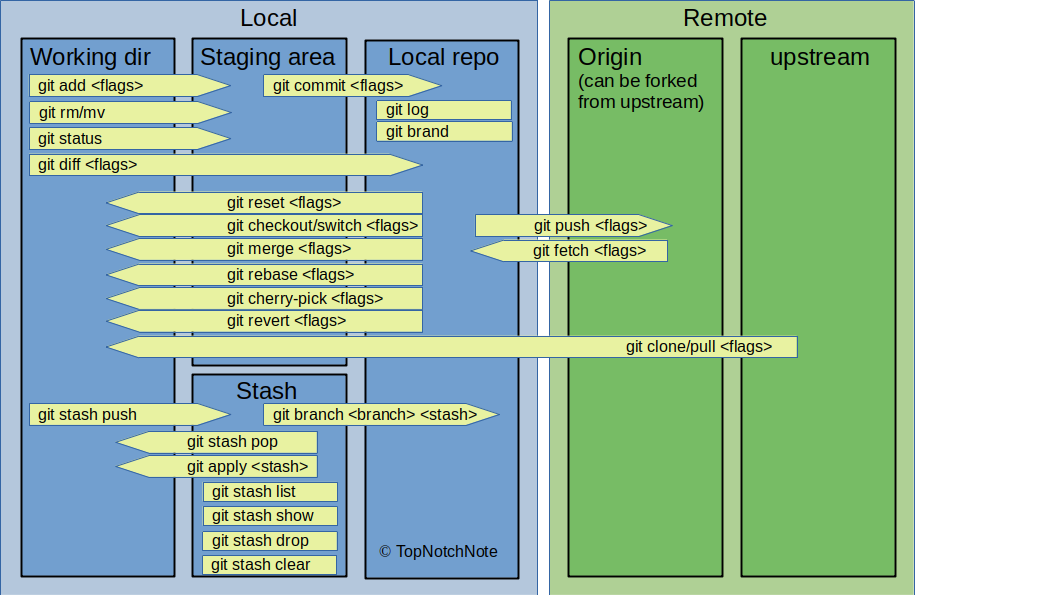
Working directory/tree is the uncommitted area where you edit, create, and delete files.
Staging area (AKA index) is a middle ground to prepare the content of the next commit.
Local repository (stored in .git in the root project) contain the project history, configurations,
branches, and tags.
Remote repository (for example github/bitbucket) is a copy of the project on another server, used
for collaboration and backup. You can directly clone the remote repo (usually named origin), or fork it into your space (your forked repo is usually called origin, and the main repo is called upstream).
configuration and setup
The global user configs are stored in ~/.gitconfig file. To set the global configs, applied to the
user on a system, use git --global, but it is easier if you manually set your
.gitconfig [sample .gitconfig].
The repository configs stores in .git/config. To set the repository configs, use git
--local
git config | https://git-scm.com/docs/git-config | it has several flags, some are listed here. |'conf1'
git config --list| | shows all local and global user configs. Add --local/--global to see local or
global configs.|'conf2'
git config user.name/email/... | | returns the username/email or other items for the current computer.
First, returns local if exists, if not, returns global, if not returns system. |'conf3'
git config --global user.name <firstname lastname>| | sets global username|'conf4'
git config --global user.email <valid-email>| | sets global email id|'conf5'
git config --global diff.tool <diff tool, ex vimdiff>sets the diff tool
git config --global merge.tool <merge tool, ex vimdiff>sets the merge tool
To prevent accidental staging or committing of files, you can add .gitignore file to the root.
Any folder/extension/file that you don't want to push to the repo, you can add it to this file.
[sample .gitignore - reference].
Putting a name in .gitignore, without/, ignores both files and folders with that name. But if we add / at
the end of the name, it only ignores folders.
Gitignore doesn't ignore already tracked files. To just stop tracking a file that is already in the
repo, run: git rm --cached <path_to_file_to_be_removed>
Git ignores directories with no files in it. To keep track of an empty directory, one can add one dot
file (such as .gitkeep).
basic operations and snapshotting
HEAD is a reference/pointer to the current checked out commit. The content of the checked out commit/HEAD
is in the working directory. After each commit HEAD moves. If you check out a commit/SHA, HEAD points
to the new checked out commit, and in this case, it is called Detached Head.
To refer to commits before HEAD, without using SHAs, use ~ (or ^). Example: HEAD~ (reference to a commit
before HEAD), HEAD~~ (reference to two commits before HEAD), HEAD~3 (reference to 3 commits before HEAD).
In a log report, you may see: HEAD->master, which means HEAD refer to the master branch (or any other
branches).
git status| https://git-scm.com/docs/git-status | shows staged and unstaged changes |'snap1'
git add <file(s) or path>| https://git-scm.com/docs/git-add | adds unstaged changes to
stage for the next commit |'snap2'
git add -i | | (or --interactive) it opens interactive staging mode, to
carefully pick what you want to stage. There are 8 options (status, update, revert, add untracked,
patch, diff, quit, help). if you have multiple changes in your file, patch mode allows to stage
portions/hunks of the changes (you can directly run git add -p to go to the patch option). Git decides
how to split changes into hunks, but it can split the hunk even further, if you ask git. There should
be at least one unchanged line btw changes. This is possible through patch, and split hunk (s option). |'add1'
git commit -m "commit message"| https://git-scm.com/docs/git-commit | commits staged changes with a
[hint: use a short message (< 50 chars) in the first line, in the present tense. Add longer comments on
the following line.] |'snap4'
git commit | | (with no -m) opens a text editor, which allows a multiline message |'snap5'
git commit -am "commit message" | | stages and commits all in one command |'snap6'
git commit --amend | | adds the current staged changes to the last commit (merge it with that) |'snap7'
git reset <flags> <commit> <--> <path> |
https://git-scm.com/docs/git-reset | moves the HEAD to a specific commit, and depending on the options,
it adjusts the files in the staging area and working dir |'reset0'
git reset | | the opposite of git add. Moves staged files to the working dir. |'reset1'
git reset --soft <commit/branch/tag/HEAD/HEAD^...> | | moves the HEAD to the
specified commit/branch/tag/HEAD ... and the changes go to the staging area. Use it for your own repo,
which has not been shared with others. |'reset2'
git reset --hard <commit/branch/tag/HEAD/HEAD^/...> | | moves the HEAD to the
specified commit/branch/tag/HEAD ... and the current branch pointer back, Resets the staging area
(index) to match commit/branch/tag/HEAD .... This is a destructive command, throws away all changes in
both the staging area and the working directory, restoring your repo to exactly the specified
commit/branch ... state. |'reset3'
git reset --mixed <commit/branch/tag/HEAD/HEAD^/...> | | moves the HEAD and changes
the staging area to match repo, but it does not change the working dir |'reset4'
git restore <file_name> | https://git-scm.com/docs/git-restore | restores a single file's
changes to HEAD, without touching any other file. It is equivalent to "git checkout HEAD -- file_name" —
it is NOT equivalent to "git reset --hard HEAD", which resets the staging area AND working directory for
every file in the repo, discarding all uncommitted changes, not just this one |'snap6'
git rm <file> | https://git-scm.com/docs/git-rm | adds deleted files to the stage
for commit |'snap7'
git mv <source> <destination> | https://git-scm.com/docs/git-mv | moves
or renames an existing file/directory path and stages for commit. It is equivalent to three commands:
mv source destination; git rm source; git add destination. |'snap8'
git clean <flags> | https://git-scm.com/docs/git-clean | removes untracked files in the working tree |'cln0'
git clean -n | | shows untracked files that would have been removed if you run git clean -f |'cln2'
git notes | https://git-scm.com/docs/git-notes | adds extra information (annotations) to commits
withtout modifying the commit itself, i.e., instead of rewriting the history with "git commit --amend",
it adds metadata alongside a commit. It usually used to add review comments, test results, ticket IDs,
etc. To see commit notes: "git log --show-notes"|'note0'
git notes add -m "note message" <SHA> | | adds a "note message" to commit with SHA.
if no commit SHA specifies, it adds the note to the latest commit. |'note1'
git push <repo_alias, ex origin> refs/notes/*| | pushes all notes to the remote repo
(say origin). By default, git does not push notes to remote repo. |'note4'
git fetch <repo_alias, ex origin> refs/notes/*| | fetches new notes from the remote repo
(say origin). |'note5'
inspection & comparison
git log <flags>[help]shows commit logs. You can adjust/decorate the output, using various flags. It is easier to use
alias for long command.
git log | | shows all commits for current branch |'log1'
git log -n 5 | | shows the last 5 commits on this branch |'log2'
git log -1 | | shows the last commit on this branch |'log5'
git log --oneline --graph --decorate -n 20 | | shows the graphical connection of the last 20 commit
message |'log6'
git log -p | | shows the changes with the commits |'log13'
git log --format="%h -by %an %aD-commited %cn %cD : %s"[help]formats the commits. Allowable options are: medium(default), short, full, fuller, email, raw,
oneline, or String. See Pretty Format
for more details.
git log <commit#1>..<commit#2> | | shows the commits after commit 1 upto
commit 2 |'log15'
git log <commit#1>...<commit#2> | | shows commits that are unique to
each side (not shared) |'log16'
git log --show-notesshows commit logs with notes. See git notes.
git log --follow -- <filename>| | shows the commit history for a file, including renames |'log18'
git shortlog | https://git-scm.com/docs/git-shortlog | summaries a git log, mainly used to see who
committed what in a repository. Groups commits by author and shows a list of commit messages under each
author. Useful for generating release notes or contributor summaries. |'inst12'
git difftool <SHA/HEAD/HEAD^/...> [help]similar to git diff, but uses a diff tool (ex vimdiff) to show the changes. The diff tool must be specified in
the global git config. [see here].
git range-diff <branchA/commitA..branchB/commitB> <branchA/commitA..branchC/commitC>
| https://git-scm.com/docs/git-range-diff | compares two commit ranges side by side. Similar to a diff
for sequences of commits instead of files. Super useful when rebasing or reviewing patch revisions. |'inst11'
git show <SHA/commit/tag/tree> | https://git-scm.com/docs/git-show | shows log message
and diff for the commit/SHA. For tags it shows tag message and ref objs. |'show'
branching and merging
git branch <flags> | https://git-scm.com/docs/git-branch | To list, create, or delete
branchs |'br0'
git branch | | lists all branches in the repo. Current branch has *. To list remote branchs add -a.
| 'br1'
git branch --all | | lists all local and tracking branches | 'br2'
git branch -r | | shows the remote branches |'br3'
git branch --contains <SHA> | | finds the branch that contains SHA |'br4'
git branch --merged| | shows all branches that are merged in the current branch (used to find and
delete branches) |'br5'
git branch --no-merged | | shows branches not merged into the current one |'br6'
git branch -m <oldName> <newName> | | renames branch name (-m stands for
move). OldName is optional, if not specified it changes the current branch. |'br7'
git branch -d <branch_to_delete> | | deletes a local branch that has been merged, you
cannot be on the branch |'br9'
git branch -D <branch_to_delete> | | deletes a local branch that has NOT been merged,
you cannot be on the branch |'br10'
git checkout <flags> | https://git-scm.com/docs/git-checkout | switch branches or
restore working tree files |'co0'
git checkout <branch name> | | switches to branch name [same as git switch] |'co1'
git checkout -- file(s) | | discards changes (checks out the file from the repo). Similar to restore
|'co2'
git checkout <SHA/HEAD/branch> -- file(s) | | retrieves/checks out file(s) from the
SHA/HEAD in repo in the current working dir |'co3'
git checkout -b <new_branch> <existing_branch/SHA/tag> | | checks out a
new branch from another branch or commit. it can be used to create a feature branc off of a remote branch |'co3'
git switch <branch name> | https://git-scm.com/docs/git-switch | switches to branch
name [if the current branch has uncommitted changes, it cannot switch if changes in the working dir c
onflict, but can switch if files are not being tracked] |'sw0'
git switch -c <new branch name> | | create and switches to new branch |'sw1'
git switch - | | switch back to the previous branch |'sw2'
git merge <branch> | https://git-scm.com/docs/git-merge | merge a branch (or a remote
branch if name/branch) into the current branch (to update the branch) |'mr0'
There are four types of merges:
Fast-Forward: only possible if no additional commits is on the main (or any branch you are
merging to) and merge brings the commit from the feature to main with no new commit. This is the default
behavior (--ff). To avoid merging if fast-forward is not possible use --ff-only.
A --- B --- C (main points at C)
\
D --- E (feature points at E)
After running the following: git checkout main - git merge feature
A --- B --- C --- D --- E (main, feature both point at E)
Git doesn't need to create a merge commit, it just moves main forward to point at E.
Recursive/Real merge: happens when we have some additional commits on the main after the new branch is
initiated from the master. There is a possibility of merge conflict, which needs to be solved manually.
Even if there is no new commits on the main branch, we can change the default to do a real merge by
using --no-ff. It preserves the history. Before merge, it looks like:
main: A --- B --- C
\
feature: D --- E
After merge:
main: A --- B --- C ---- F (F is th new merge commit)
\ /
feature: D ---- E
To manage merge conflict, you can:
Abort merge: git merge --abort
Resolve the conflicts manually
Use a merge tool
Squash mergre: Squashes all changes from the feature branch into one commit in the main branch to
produce a linear history. Individual commits from the feature branch are not preserved.
main: A --- B --- C --- F (F is the squash commit)
feature: D --- E
Rebase: not actually a type of merge — it never creates a merge commit. Instead it replays your
branch's commits one by one onto a new base commit, producing new commits (new hashes) with a linear
history. Nothing is removed; the old commits just become unreachable once the branch pointer moves.
If ff is not possible (as explained in the real merge), one can rebase first and then do the ff
[see rebase].
git mergetool[help]runs the merge conflict resolution tool to help you resolve the merge conflict, instead of manually
editing conflict markers (<<<<<<<, =======, >>>>>>>) in your files [conflict may happen with merge,
rebase, and cherry-pick]. Each conflicted file opens in the merge tool.
The merge tool must be specified in the global git config. [see here].
git stash | https://git-scm.com/docs/git-stash | stashes/saves the unstaged changes and allows
switching to other branches without committing the changes. Stash does not include untracked files,
bcs there is no conflict. To include the untracked files, use -u (or --untracked-files).|'st0'
git stash push <filename> || stashes only one file | 'st_file'
git stash push -m "message" | | saves modified files and reverts them to the last committed state.
The newer stashes save at top of the stack. |'st1'
git stash list | | lists all the stashes on the branch |'st2'
git stash show stash@{<stash no.>} | | shows an overview/summary of the changes for
stash number # (files and by how much, not the actual diff) |'st3'
git stash show -p stash@{<stash no.>} | | shows the actual changes in the stash
|'st4'
git stash apply stash@{<stash no.>} | | restores the changes but keeps the stash in
the list. If not number specifies, it applies on the most recent stash.|'st5'
git stash pop stash@{<stash no.>} | | restores the changes and deletes that stash
number. If not number specifies, it applies on the most recent stash. No need to be on the original
branch, can be applied on any branch. |'st6'
When we do apply/pop stashes, we may (rarely) face conflicts. In that case we need to resolve the conflict.
git stash drop stash@{<stash no.>} | | drops/deletes a specific stash number |'st7'
git stash clear | | deletes all stashes |'st7'
git tag <flags> | https://git-scm.com/docs/git-tag| creates, deletes, or verifies a tag.
It has two types of tags: lightweight (no message) and annotated tag (with message). A tag is a
bookmark on a particular commit and unlike branches, tags don't move—they're fixed references.|'tag0'
git tag <tag_name> <SHA> | | creates a lightweight tag |'tag1'
git tag -a <tag_name> -m <tag_message> <SHA> | | creates an
annotated tag (most common), -a shows it is annotated. If you drop -m and the message, it opens the
editor so that we can have a multiline message. If we leave -a but having -m, it assumes it is annotated.
If we omit the commit SHA, it assumes the current HEAD as the commit. |'tag2'
git push <repo_alias, ex origin> <tag_name> | | pushes the tag_name to
the remote repo_alias (usually origin) |'tag3'
git push <repo_alias, ex origin> --tags | | pushes all tags to the remote repo_alias
(usually origin) (git push alone does not push the tags) |'tag4'
git tag -l | | lists all tags. git tag and git tag --list do the same. |'tag5'
git tag -l <pattern, ex v2.*> | | lists tags beginning with a pattern, here v2.* |'tag6'
git tag -l -n | | lists tags with annotation |'tag7'
git fetch --tags | | fetches only tags from the remote repo |'tag8'
git checkout -b <new_branch> <tag_name>| | starts a new branch from a tag |'tag9'
git tag --delete <tag_name> | | deletes tags locally (git tag -d <tag_name>) |'tag10'
git push <repo_alias, ex origin> --delete <tag_name> | | deletes tag_name
from the remote repo_alias (usually origin) |'tag11'
git push <repo_alias, ex origin> :<tag_name> | | deletes tag_name from
the remote repo_alias (usually origin) (same as above) |'tag12'
git describe | https://git-scm.com/docs/git-describe | gives a human-readable name to a commit, based
on the nearest tag in your repository. |'desc'
git worktree | https://git-scm.com/docs/git-worktree | lets you have multiple working trees
(directories) attached to a single Git repository, which means you can check out different branches at
the same time without having to constantly git checkout back and forth (work on multiple branches
in parallel without stashing, committing temporary work, or even copying the repo). |'wt0'
git worktree add <../feature-worktree> <feature-branch> | | adds a new
worktree (checks out a feature branch in another folder, while in the root of the repo) |'wt1'
git worktree list | | lists all active worktrees |'wt2'
git worktree remove <../feature-worktree> | | removes a working tree after you are done |'wt3'
Three types of remote branches:
Branch on the remote repository (on a server, such as github).
Local snapshot of the remote branch (ex: original/develop), which is a snapshot of the remote branch,
and it is called remote tracking branch. This is what you get with git fetch, and delete with
git remote prune / git fetch --prune (see below). When collaborators delete branches, you need to
delete it on your local repo.
Local branches exist only on your system.
git prune | https://git-scm.com/docs/git-prune | a low-level command that deletes unreachable
local git OBJECTS (blobs/trees/commits with no ref pointing to them, e.g. left over after a hard reset
or an amend) from .git/objects. It has nothing to do with remote-tracking branches — that's what
git remote prune / git fetch --prune are for (see below). git prune is normally invoked for you by
git gc and rarely needs to be run directly. |'pr0'
git prune --dry-run | | shows which unreachable local objects would be deleted, without deleting them |'pr1'
git fetch -p (or --prune) | | fetches, then deletes any local remote-tracking branch (e.g.
origin/feature) whose remote counterpart no longer exists |'pr2'
git remote prune <repo_alias, ex origin> --dry-run | | shows which stale
remote-tracking branches would be deleted, without deleting them |'pr3'
git remote prune <repo_alias, ex origin> | | deletes all stale remote-tracking
branches for that remote, such as origin/feature |'pr4'
sharing and updating
git fetch <or a name>| https://git-scm.com/docs/git-fetch | brings the remote changes
to the local origin/master (tracking branch) without merging to the local master |'br1'
git pull | https://git-scm.com/docs/git-pull | fetches and merges from the remote branch. If the
remote has changes and you want to push your changes, you need to run this first. |'br2'
git push <repo_alias, ex origin> <branch> | https://git-scm.com/docs/git-push
| updates remote branch by pushing the changes in the local branch to the remote repo_alias (usually
origin) branch |'br3'
git push -f <repo_alias, ex origin> <branch> | | forces push when local
version is better than the remote version or versions have diverged and merging is undesirable |'br4'
git push <repo_alias, ex origin> --delete <branch> | | deletes a remote
branch (method 1) in repo_alias. Automatically deletes the remote-tracking branch at the same time. |'br5'
git push <repo_alias, ex origin> :<branch> | | deletes a remote branch
(method 2). By adding ":" to the branch name, it deletes the remote branch without deleting the local
branch. |'br6'
git remote | https://git-scm.com/docs/git-remote | manages set of tracked repositories |'rem0'
git remote add <name> <url> | | adds a git url as name |'rem1'
git remote -v | | shows info about the remote repo associated with the local repo |'rem2'
git remote set-url origin https://github.com/username/new-repo.git | | changes the url of an
existing remote repository (remote repo name) to a new one. It can also be used to change HTTPS to
SSH. |'rem3'
patching
Patches are text files that represent changes (diffs) between commits. Two types of patches:
unformatted patch: contains only the raw diff (file changes, additions, deletions), with no commit
metadata (author, date, message, etc.).
formatted patch: contains the raw diff (file changes, additions, deletions) and commit metadata
(author, date, message, etc.).
git diff <SHA#1/ref#1/branch#1..SHA#2/ref#2/branch#2> >
<patch/file_name, ex file.patch> | | drops changes to a file (unformatted patch) |'patch0'
git format-patch <SHA#1/ref#1/branch#1..SHA#2/ref#2/branch#2>
-o <patch, ex. ~/patches/> | https://git-scm.com/docs/git-format-patch |
exports all commits in the range, each in one file. Files
are ordered based on commits. It is recommended to use "-o path" to specify the directory to drop the
patch files. |'patch1'
git format-patch -<#commits> <SHA/ref/branch, ex. HEAD>
-o <patch, ex. ~/patches/> | https://git-scm.com/docs/git-format-patch |
exports #commits before SHA/ref/branch, each commit in a
separate file. Files are ordered based on commits. It is recommended to use "-o path" to specify the
directory to drop the patch files. |'patch2'
git format-patch <branch_name, ex. feature> -o <patch, ex. ~/patches/> ||
exports all commits on the current branch which are not in the branch_name. Used to pass/share all
changes that are not on a remote branch. |'patch3'
git apply --reject --whitespace=fix <patch/file_name, ex file.patch> |
https://git-scm.com/docs/git-apply | applies the patch. Use only for unformatted patches (if use it with
formatted patches, you lose metadata) |'app0'
git am <path-to-patches/*, ex. ~/patches/*> | | applies all formatted patches |'app1'
git am <path-to-patches/patch-name, ex. ~/patches/0001_p1.path> | | applies one formatted patch |'app2'
git cherry-pick <flags> | https://git-scm.com/docs/git-cherry-pick | applies changes
from one or more commits to the current branch. Each cherry-picked commit is recorded as a new commit
on the current branch, with different SHA (unlike git merge or git rebase which bring in all changes).
|'cpick0'
git cherry-pick <SHA> || brings SHA commit from another branch to the current branch
|'cpick1'
git cherry-pick -e <SHA> || brings the single SHA commit from another branch to the
current branch, opening an editor so you can change its commit message before it's applied |'cpick2'
git cherry-pick <SHA#1..SHA#2> || brings the commit range btw the two SHAs from
another branch to the current branch |'cpick3'
git cherry-pick <SHA#1> <SHA#2> <SHA#3> | | brings multiple
commits from other branches to the current branch. It is recommended to order SHAs chronologically
(olders first) to reduce the chance of conflict. |'cpick4'
Cherry pick may result in conflicts. Here are the options:
git add <fixed-files> if you resolved the conflict, run this to stage the changes. git cherry-pick --continueafter resolving all conflicts, run this to finalize the cherry-pick commit. git cherry-pick --abortcancels the cherry-pick, restores branch to pre-cherry-pick state. git cherry-pick --skipskips the current commit (useful when cherry-picking multiple commits, and one fails)
git revert <flags> | https://git-scm.com/docs/git-revert | undoes the changes
introduced by a commit (or commits) by creating a new commit that reverses them. It does not delete
history (safe for shared branches like main or master). |'rev0'
git revert <SHA> || reverts an old commit by returning the file(s) to one commit
before SHA, and adds a new commit saying Revert "SHA message" |'rev1'
git revert <SHA#1> <SHA#2> (or <SHA#1..SHA#2>) || reverts
an multiple old commits by returning the file(s) to one commit
before SHA#1 |'rev11'
git revert -e <SHA> || similar to the previous commends, but allows to change the
commit message |'rev2'
git revert -n <SHA> || reverts an old commit by returning the file(s) to one commit
before SHA, and adds the changed files to the staging area, ready for commit |'rev3'
Revert may result in conflicts. Here are the options:
git add <fixed-files> if you resolved the conflict, run this to stage the changes. git revert --continueafter resolving all conflicts, run this to finalize the revert commit. git revert --abortcancels the revert, restores branch to pre-revert state. git revert --skipskips the current commit (useful when reverting multiple commits, and one fails)
git rebase <flags/branch_name> | https://git-scm.com/docs/git-rebase | reapplies
commits from one branch onto another, creating a cleaner, linear history.
The commits get new hashes because they were rewritten.
Useful for syncing your branch with main before merging. As opposed to git merge, which creates a merge
commit, git rebase rewrites the history with no extra commit.
| 'rebase0'
git rebase <branch_name, ex main> | | rebases current branch to tip of
branch_name/main |'rebase1'
git rebase <branch_name, ex main> <feature_branch> | | rebases
feature_branch to tip of branch_name/main |'rebase2'
Rebase may result in conflicts. Here are the options:
git add <fixed-files> if you resolved the conflict, run this to stage the changes. git rebase --continueafter resolving all conflicts, run this to finalize the rebase commit. git rebase --abortcancels the rebase, restores branch to pre-rebase state. git rebase --skipskips the current commit (useful when rebasing multiple commits, and one fails)
git rebase --onto <new_base (commit or branch)>
<upstream (old_base/main)> <[new_branch]> | |
rebases new_branch ([optional] the branch whose commits are to be rebased, if omitted, the
currently checked-out branch is assumed) which is coming off upstream (defines the point from
which commits are cut off and prepared for rebase) to new_base (commit or branch where the commits
will be replayed). The commits unique to new_branch (everything after upstream) ARE moved/replayed
onto new_base — that's the whole point of --onto; only the range up to upstream is left behind.
|'rebase7'
debugging
git bisect| https://git-scm.com/docs/git-bisect | helps you find the commit that introduced a bug
(or fixed one) by doing a binary search through your commit history. It automatically checks out
commits between a known good commit and a known bad commit. You mark each commit as good or bad. Git
then narrows down the range until it finds the first bad commit. |'bisect0'
Debugging workflow using git bisect:
git bisect start start bisect operation git bisect bad Mark a bad commit (usually the current commit) git bisect good <SHA> mark a good commit with no bug Now starts the binary search. Test each commit to see if it a good or bad commit, and add it.
Repeat until finished, which is when git messages the first bad commit. git bisect run <test_bug.sh> automate the bisect and test run. git bisect reset finishes the bisect process
git blame <flags/files> | https://git-scm.com/docs/git-blame | shows who changed each line of
a file and when | 'blame0'
git blame -w <file_name> | | lists the history/commits of the file_name (-w ignore
whitespace chages) |'blame1'
git blame -L <line#1,line#2 (or line#1,num_of_lines)> <file_name> | |
limits showing the history of file_name to line#1 to line#2 changes (or line#1 plus num_of_lines after
line#1) |'blame2'
git blame <SHA> <file_name> | | shows who last modified each line up
to and including SHA (not the latest HEAD) |'blame3'
git grep "<search_phrase>" | https://git-scm.com/docs/git-grep | similar to the regular Unix grep but searches
inside your git repository instead of just the current working directory |'grep0'
git grep "<search_phrase>" <SHA/branch> | | searches search_phrase in
SHA commit or branch |'grep1'
alias
git config --global alias.<new name> "<command>"[help]adds alias "alias=command" to ~/.gitconfig, used to shorten some long, widely used commads. The
command value should NOT start with "git" (e.g. use "checkout", not "git checkout") — git prepends
"git " for you, so including it yourself turns "git co" into "git git checkout" and errors.
[refer to the alias section of the sample .gitconfig]
git prompt
git-prompt refers to the git-aware shell prompt, a feature that adds git repo information directly into
your command prompt. The info includes: branch name, repo status (dirty/clean), staged/unstaged changes,
ahead/behind info, and rebase/merge/cherry-pick state. This helps you stay informed about your git repo status without
needing to run separate git commands.
To enable git-prompt, you typically need to source a script that comes with Git installations, usually
named git-prompt.sh. This script defines a function __git_ps1 that you can include in your shell prompt
(PS1) to display git info. You can
download git-prompt from
the git repository and copy that in ~/ directory. Here is the list of symbols used by git-prompt to
indicate various states (none of these show a count — they're just presence/direction indicators):
* unstaged (dirty) changes
+ staged (indexed) changes
% untracked files present (needs GIT_PS1_SHOWUNTRACKEDFILES=1)
$ a stash exists (needs GIT_PS1_SHOWSTASHSTATE=1)
< behind the upstream branch
> ahead of the upstream branch
<> diverged from the upstream branch
= in sync with the upstream branch
(needs GIT_PS1_SHOWUPSTREAM=auto for the four symbols above)
An in-progress rebase/merge/cherry-pick is shown appended to the branch name itself, e.g.
"(main|REBASE-i 2/3)", "(main|MERGING)", "(main|CHERRY-PICKING)".
Here is a sample configuration to add git-prompt to your bash prompt (add this to your ~/.bashrc or
~/.bash_profile):
# Show untracked files
export GIT_PS1_SHOWUNTRACKEDFILES=1

# Show stash count
export GIT_PS1_SHOWSTASHSTATE=1

# Show staged changes (+), modified (~), deleted (-)
export GIT_PS1_SHOWDIRTYSTATE=1

# Show ahead/behind counts relative to origin
export GIT_PS1_SHOWUPSTREAM=auto

# Show if you're in rebase/merge/cherry-pick
export GIT_PS1_STATESEPARATOR=" "

# Colors
RED="\[\033[0;31m\]"
GREEN="\[\033[0;32m\]"
YELLOW="\[\033[0;33m\]"
BLUE="\[\033[0;34m\]"
RESET="\[\033[0m\]"

if [ -f ~/.git-prompt.sh ]; then
  source ~/.git-prompt.sh
  export PS1="${GREEN}\u@\h ${BLUE}\w${RED}\$(__git_ps1 '(%s)')${RESET}\$ "
fi
undoing a mistake
The three commands below cover the most common "I messed up" moments. For the full
decision tree — including recovering a deleted branch and escaping a bad merge or rebase —
see Undoing Things in Git.
git commit --amend | https://git-scm.com/docs/git-commit | fixes the last commit's message or contents |'git_undo1'
git reset --hard HEAD~1 | https://git-scm.com/docs/git-reset | undoes the last commit and discards its changes entirely |'git_undo2'
git reflog | https://git-scm.com/docs/git-reflog | the safety net — recovers commits that a reset or rebase seemingly lost |'git_undo3'